Security & Multi-Factor Authentication
Sign-in options
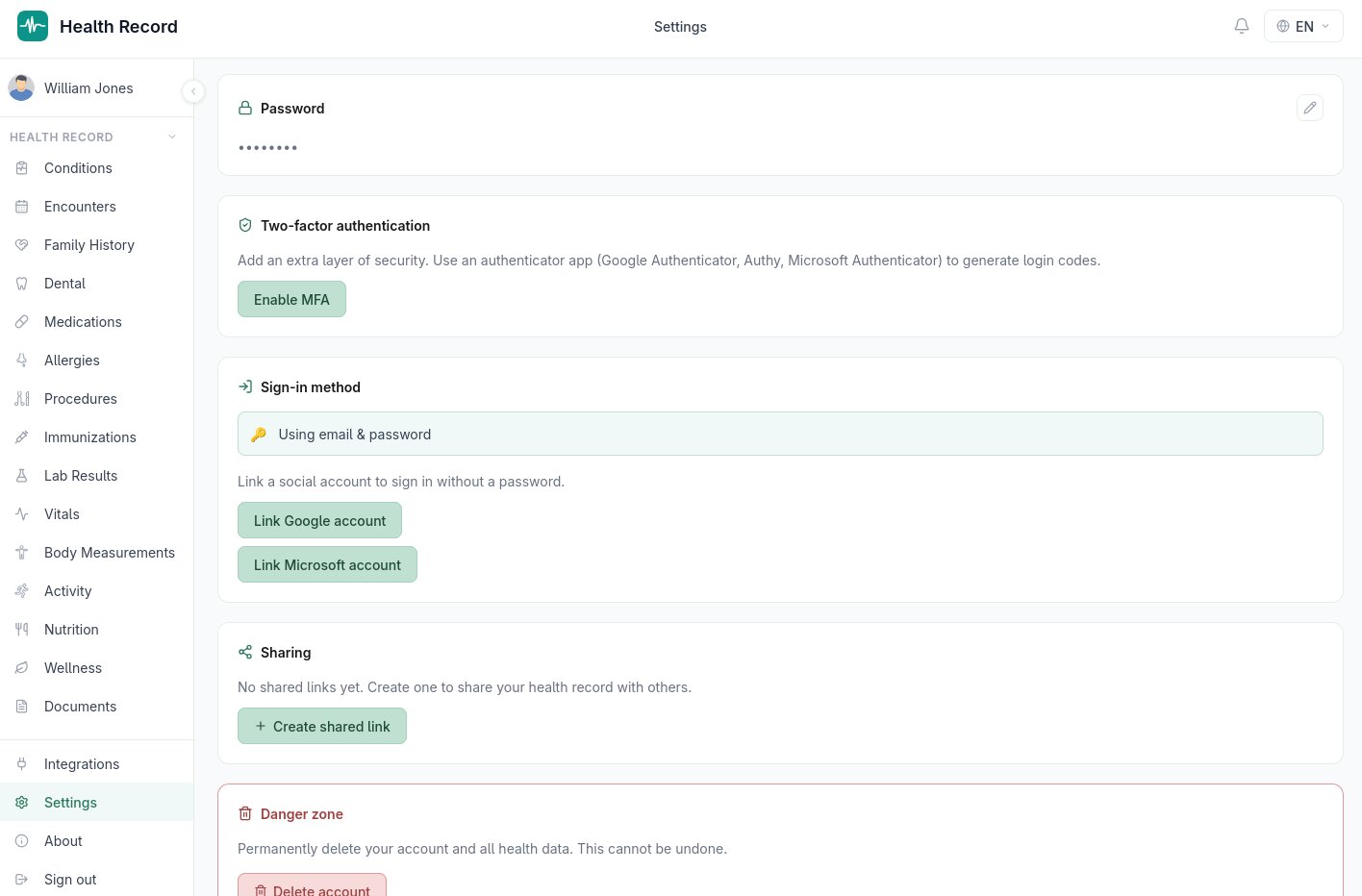
Health Record supports three ways to sign in: a local email/password account, Sign in with Google, or Sign in with Microsoft. All three can be active on the same account at once — add or remove sign-in methods at any time from Settings.
Setting up multi-factor authentication
From Settings → Security, enabling multi-factor authentication (MFA) walks you through:
- Scanning a QR code with an authenticator app — Google Authenticator, Authy, and Microsoft Authenticator are all compatible, since the implementation follows the standard TOTP algorithm (RFC 6238) rather than a proprietary one
- Confirming setup by entering one code from the app
- Saving eight one-time backup codes somewhere safe — each can be used exactly once if you lose access to your authenticator app, and they're shown only once at setup time
Once enabled, every sign-in (including via Google or Microsoft) asks for a code from your authenticator app after your usual credentials.
Disabling MFA
MFA can be turned off from the same Settings page, which requires confirming with a current code first — this prevents someone with only a stolen session, but not your authenticator app, from disabling your account's protection.
If you lose your authenticator app
Use one of your eight backup codes to sign in, then immediately set up MFA again with a new authenticator to generate a fresh set of codes. Backup codes are single-use, so a used one won't work a second time.